Showing posts with label download. Show all posts

Sunday, March 22, 2009

How to Download from pz10.com

Yet another very good, but not very popular resource of hindustani classical music is pz10.com (the pz stands for Punjabi Zone). The reason it being not too well known in the classical music circuit is, it's rather unfriendly interface and strange indexing system. But, once you get the real feel of the site it could prove to be a true bonanza to all music lovers. One good thing about this site is that it streams it's music in both .wma and .mp3 formats. Moreover, the mp3s are of 128 Kbps (near CD) quality, which is good enough reason to download from this site.


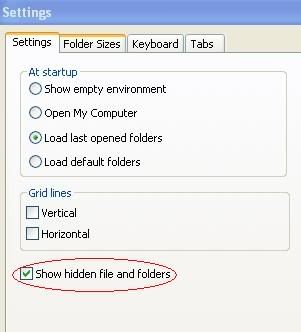
To music lovers for whom retrieving music from the Internet Explorer Cache is becoming a habit, I recommend they install ExploreXP (click here to download), a very small and free alternative to Windows Explorer which is easy to setup and can be configured to view all hidden and system files. Moreover it lets you view the filesize in Bytes rather than KBs which is the standard view in Windows Explorer.

ExploreXP settings :


Before attempting to download, clean your Internet Explorer cache completely, by either using the standard method of Start > Programs > Accessories > System Tools > Disk Cleanup, or by using an utility like CCleaner or even Index.bat (a batch code written by me for those who know their way around with the Command Prompt and Safe Booting).

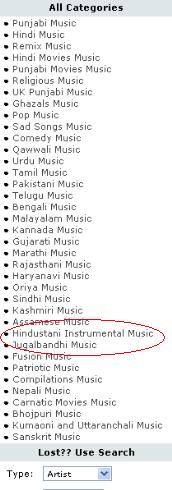
Visit the music section of pz10.com. Click on the Hindustani Instrumental Music (its more than just instrumental really), and then on the View / Browse All Hindustani Instrumental Music Albums (or simply click here).


Choose the album you want to download.
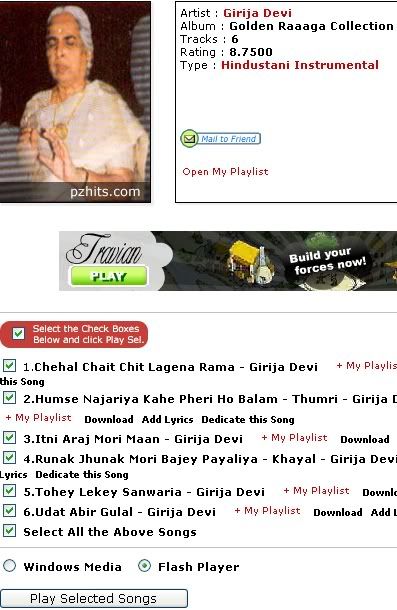


Choose Flash Player, Select All Songs and click on the Play button. Let the songs play to their full length.
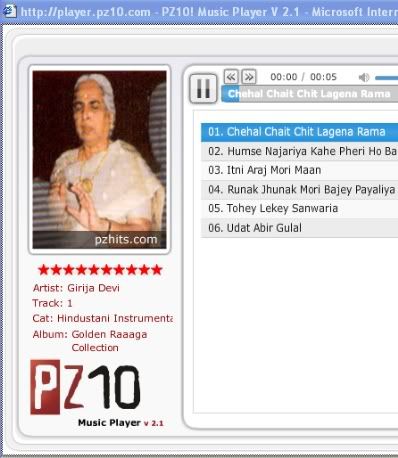


Inside the IE Cache, the song file will start to grow as it plays on :
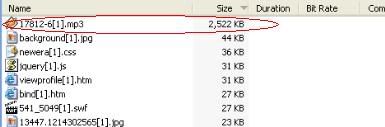


After the caching is complete :
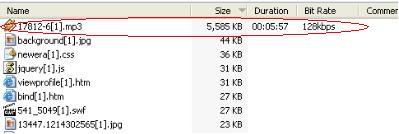


Retrieve the songs from the Internet Explorer Cache. ExploreXP will help you to do it with ease.

Another way to download is to search for flash[1].htm file in the cache which is the playlist file (this is tricky because sometimes it could be a jumbled 8 character name like CAX8KNTH.htm). If you are using the Windows Media Player as your player option, the playlist file will be named playlist[1].htm.
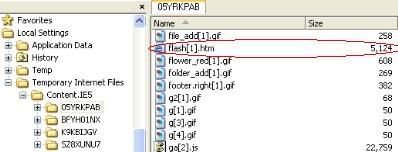


Open the file in notepad and copy the song URL (highlighted part) which looks like this :

[http://media.cdn.pz10.com/mm6/files/40/17812/17812-1.mp3 ?voxtoken=9c7c035c20238f84ff7b85b7b882ce65d204e35f]

Use a downloader like Flashget to download the file.

Note: The voxtoken=(+ a combination of letters and numbers) is a part of secure webcasting code by Voxel meant to prevent the users from downloading the music. As the voxtoken code changes every time you load the player, so does the URL of the song, preventing people from posting the songs on their blogs or elsewhere. This means, the URL is good enough for single use only.

The pz10.com team has a sense of humor too. An attempt to open the flash.asx (seemingly a playlist file, the path is mentioned in flash[1].htm), will give you this mocking message :

NO SOUP FOR YOU SHAME SHAME!!!!

Well, here is a spoonful, (of soup ?) for everyone to savour.

Girija Devi - Humse Najariya Kahe Pheri - Thumri :  (Download)


Apart from a sizeable collection of hindustani classical music, pz10.com also has a good number of regional songs including Bhojpuri and Rajasthani folk.

Enjoy !!

Sunday, February 08, 2009

How to Download from ITC-SRA

The origin of hindustani classical music can be traced back to Vedic times, nearly five thousand years ago. Some say its origin is far older, lost in the mists of distant times and places beyond the lives and memories of humankind.

From this obscure point of indeterminate origin, it evolved over thousands of years in temples and spiritual traditions throughout the Indian subcontinent. And many centuries ago, it moved from the temples into the palaces of the kings and queens of India, who were its most fervent and avid patrons. The stalwart kings of India have nurtured our music with tender care and have been its willing captives. In fact, musical training formed an indispensable item of royal education. Nowhere else in the world has royal patronage and encouragement to music probably been as continuous and rich as in India.


After India's independence, the loss of royal patronage threw the arts open to public mercy. Hindustani classical music, in its pure form, is fundamentally a complex study and therefore, cannot come within the reach of the uninitiated. As a result, serious music suffered. During the mid-seventies, ITC's top management envisioned that the Company (ironically, a tobacco company) could play a major role to preserve and propagate the rich Indian musical heritage.

ITC-SRA (ITC Sangeet Research Academy) was created in 1977 as an independent Trust. In creating ITC-SRA, ITC's farsighted endeavour was to establish a modern 'Gurukul' and revive the traditional 'Guru-Shishya Parampara'. Corporate patronage of music on this scale was unknown before. It's website holds a treasure, classical music that is unavailable elsewhere, recordings that are exclusive and rare to find. You may visit the site and hear all the music to your heart's fill but you are not supposed to download it. It uses Real media for streaming music and video, hence files are playable only if you have Real Player installed in your system.

But for obstinate people like many of us, there is a way to download music from ITC-SRA too. First of all you must have a downloader installed. I use Flashget (I recommend Flashget Classic version 1.73), but Orbit downloader and for that matter any downloader that supports rtsp (Real Time Streaming Protocol) will do. Once the downloader is installed, open it and visit the ITC-SRA site (or click here). Click on the Raga Online option (see image) or straightaway click here :


Choose your desired artist from the dropdown menu :


A list of songs available on the site will appear :


Right click the small speaker icons and save the file by choosing 'Save Target As...'. But hold on, this is not the actual music file but just a playlist and could be as small as just 1 Kb (e.g. bhimsenjoshi_bhairavi.ram for the encircled song). Open the file in any text editor (notepad will do) and you will be able to see it's content, a single line with commands for your Real Player :


rtsp://202.138.97.7:554/~itc/audio/kirana/bhimsenjoshi_bhairavi.rm ?cloakport=80,554,7070

Copy the highlighted part (leave the ? and the part after it). Paste the link in the downloader's URL window (if the URL snatcher is on, it will paste the URL automatically). This is what it looks like in Flashget :


Click OK and your file will begin to download :


The files are Real Media files with a .rm extension and can be played with Real Player or any other player that supports this format.

You may convert .rm files into .mp3 if you wish. I use Super for most of my converting jobs.

Listen to two songs from the above list, downloaded in similar fashion, converted to mp3 files, uploaded and posted here for your listening pleasure ( now, who says I am not doing the hard work...and making your lives easier ?? ) :

Bhimsen Joshi - Bhairavi (Jo Bhaje Hari Ko Sada) :  (Download)


Bhimsen Joshi - Khamaj Thumri (Jadu Bhareli) :  (Download)


Comments are welcome.

Enjoy !!

Tuesday, September 16, 2008

How to Download from imeem.com

Imeem.com is one of the more popular sites among the music communities. One unique thing about imeem.com is that it converts all its .mp3 uploads into .flv format (flash video format minus the video) for streaming purpose.


It does another thing to the files : it gives them unusually long names and an extension that confuses the person who is figuring out a way to download a music file. In the Internet Explorer Cache the files are seen as .gif files which normally are graphic images. The long names allotted to the files is probably to prevent the users from copying the files from the Internet Explorer Cache. A typical Imeem song has a name like this :

jnqaSyDSXHO13HPqVv...YsqZOQR3BtEZZ3TMO_pj6s9w.gif

With almost 200 or so more alpha-numeric characters in place of ... and in between.

Now a file name as long as this (it may even extend beyond your computer screen) usually freezes your computer when right clicked with the mouse (in your attempt to copy it) resulting into a system crash or forcing you to close the Windows Explorer. In other words downloading music from imeem.com is banned officially (or at a price).

So how to download from imeem.com ?? Follow some simple steps and you may be able to download from imeem.com :

As usual clean your Internet Explorer Cache thoroughly. For a detailed description of how to clean your Internet Explorer Cache read my previous post How to Download from musicindiaonline.com. Apart from the routine Start > Programs > Accessories > System Tools > Disk Cleanup, I would highly recommend to delete the mysterious index.dat files as well. Index.dat files are not easy to delete when Windows is running, and you will need a special tool for this. The best tool that is easily available and most importantly, a freeware is CCleaner (formerly known as Crap Cleaner).


A portable version of CCleaner is highly recommended which will spare you from the installation process. If you are comfortable enough with booting up your system into Safe Mode, then I have a little surprise for you : a nifty utility (only 3 KB) that I have devised for my personal use and which I am willing to share. Find the link in the sidebar of this blog or click here. Go through the Readme.txt file before using it.


Once the index.dat files are gotten rid of you are left with only 4 sub folders in the Temporary Internet Files folder making it easier to find the music files.

Now go to Imeem.com and start playing the file that you want to download. At the same time go to Start > Programs > Accessories > System Tools > Disk Cleanup. Click on the View Files button on the next window. You will find the file in one of the 4 folders, growing in size as it plays on.


Once it has played its full length or when it stops growing in size and has buffered fully, you may rename the file by a 'delayed' double-click of the mouse (do not right click as it may freeze your computer), to a short name of your choice (e.g myfile.flv) with the .gif replaced with .flv as it's extension.


Copy (or Cut and Paste) the file in the folder of your choice and play it in a Flv Player. You may convert this file into a mp3 file if you wish using a file converter. I use SUPER for most of my converting jobs.

Enjoy !!
Tuesday, July 08, 2008

How to Download from Smashits.com


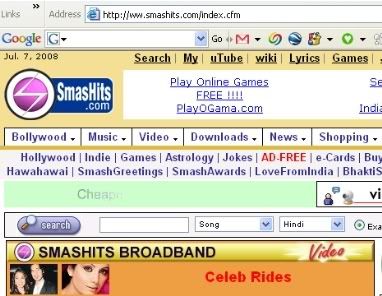
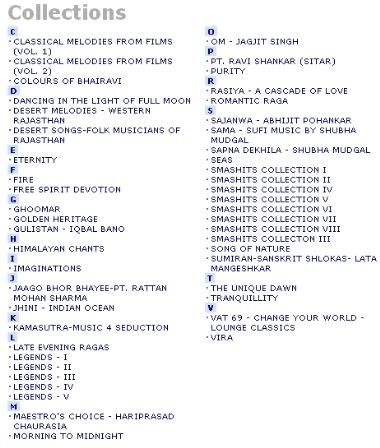
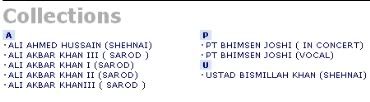
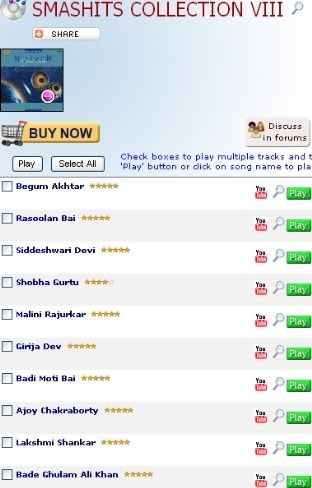
I wonder how many Indian Classical Music enthusiasts know that ww.smashits.com (note the ww instead of www) has a few gems of hindustani classical music stored in it's seemingly bollywood centric server. This portal is not very new and does not boast of a large classical music content but still I managed to download a few pieces of music not available anywhere else. My favourites are about 75-80 songs featured in it's 'Smashits Collection' (8 CDs). These are now an important part of my 'indianraga.collection'.

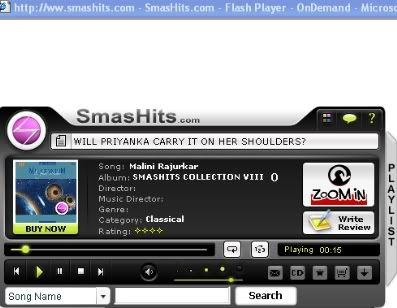
See the screenshot of the classical music collection in the category 'Classical' :


And the collection in the category 'North Indian Classical' :


However there is a catch. There is no way you can download a music file directly from this site (sorry, there is one but only by making a small payment). But for mortals like yours truly, who are forever downloading music and would go bankrupt in a few weeks if they continue paying for it, there is always a way out.

But first things first. I would like you folks to go through my earlier post :

How to Download from musicindiaonline.com

As we are going to retrieve the music files from the 'Internet Explorer Cache' it is essential to clean it completely before going further. Firefox users will not be able to download using this method. There are a few tricks for diehard Firefox fans too, but let's leave them for another time.

After you have cleaned your Internet Explorer Cache, follow the steps mentioned in the post : How to Download from musicindiaonline.com to view your downloading files.

Now unlike musicindiaonline.com which streams it's music in Real Audio (.ra) or Windows Media Audio (.wma) format, smashits.com uses a Flash Player and streams it's music in .mp3 format (usually 64 kbps) which is a big plus for those who want to download from this site. Moreover the sound quality of the files is much better than that on musicindiaonline.com (20-24 kbps).

Click on the album you want to download and select the files (you may select all, if you want).


Click on the 'Play' button. The Flash Player will open as a pop-up.


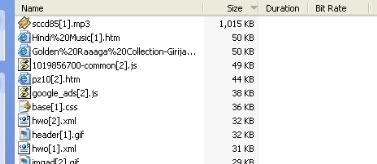
Open the Internet Cache folder and you will be able to view your file gradually growing in size as it plays on.


Let it buffer fully (you will see the 'Bit Rate' and 'Duration' of the file appear when it does). You don't need to play the file to it's full length but letting it buffer fully is very important.


Copy the file and paste it in the folder of your choice, rename it according to it's original name and repeat the procedure to download another file. On a fast Broadband connection you may be able to download an album (5-6 songs) in 4-5 minutes.

Watch out for more downloading tips from other music streaming sites in my future posts.

Download and Enjoy Listening !!

Friday, April 18, 2008

How to Download from musicindiaonline.com

Almost everyone who has anything to do with music, both 'hindustani classical' and 'popular' must surely have visited www.musicindiaonline.com more than a few times. This site claims itself to be the largest Indian music resource on the internet. True of course, be it hindustani classical, indipop, bollywood, fusion or regional folk, you name it and it's all there on this site.

The difference between this site and other file hosting sites is very basic. Whereas musicindiaonline.com has it's own files on it's servers and has full control over the streaming quality of the music and also what files to put or remove, other sites like mediafire.com, eSnips.com, 4shared.com and the rest have no such control.

Many of us must have encountered a much wanted song on musicindiaonline.com and wished fervently that there had been a download button on this site. Alas, there is none and no trick such as changing the URL (a'la eSnips) work here.

But for few of us who desperately want a particular music file and are ready to spend a little time, there's a way out : a simple method by which you can download a file or even multiple files in one go.

Just follow a few simple steps. Remember this trick will work with Internet Explorer only.

Go to the Start Menu > Programs > Accessories > System Tools > Disk Cleanup. Clean all the mess that has been accumulating in the browser's cache. Once the cache is empty you may go to the musicindiaonline.com site and search for your favourite song or album just as shown in the figure below.


Select the songs to be downloaded by ticking them or if you want them all, tick 'Select All'.


Click the 'Play Selected Songs' button. If you have not been to this site recently it will ask you to choose between Real Player and Windows Media Player. Select Windows Media Player as in the pic below :


The player will open up and your playlist will begin to play.


As the file is playing repeat Step 1 (i.e Disk Cleanup). But this time don't clear the cache but click on the 'View Files' option :


This will open a directory of Internet Cache folders as seen below :


Explore each folder (if you have cleaned your Internet Explorer Cache thoroughly, there should be four of them). You will find your playing file in one of the folders, growing by size as it plays on. Wait for the 'Duration' and 'Bit Rate' details to appear and click on the 'Play Next' button of the player to start playing the next song in the playlist.


You may now Copy or Cut & Paste the previous file to a folder of your choice. The files are in .wma format. Keep on exploring all the folders as the second file plays on and you will find it in one of the folders. Repeat the process.

You need not play each song to it's full length. On a fast internet connection a 15 minute song may buffer fully in a couple of minutes. But it's important that you wait for the 'Duration' and 'Bit Rate' details to appear before copying (or cut & paste) the file.

Keeping in mind that musicindiaonline.com has music streaming at a very low bitrate (20-24 kbps) an album consisting of 6-7 songs may be downloaded in 4 to 5 minutes.

Thursday, February 28, 2008

This file is no longer available on eSnips!

These days eSnips seems to be getting paranoid about letting users to both upload and download music files (mp3 in particular, as other formats are still left untouched). Everytime you attempt to play a music file you more often than not, will get a message :

Maximum daily bandwidth exceeded

The maximum daily bandwidth for this account has been reached. Please try to download this file another day.

Thank you,
The eSnips Team.


The next day you will probably see the same message (I've been trying to download a file from an user's folder for the last ten days and getting this same message again and again and everyday). I have not been able to find a way out for this problem till today.... but I'm trying.

When you try to upload a music file (try recording a sound file of your own voice and uploading it) you invariably will be refused to upload it (publish it, as people at eSnips call it) citing copyright infringement laws, but only when the file has almost uploaded fully and not at the beginning when the upload starts.

This could be very frustrating for many of us. Imagine an user uploading a 50 MB file and tearing his hair when he gets this message, only after the upload is almost done. However, there are ways to circumvent these glitches as eSnips is presumably using a software called 'Audible Magic' which scans each music file for copyright fingerprints. However, even my not-so-techy mind knows, these fingerprints are embedded in the mp3 file in the form of ID3 tags either in beginning of the file or at the end of it. Try trimming the mp3 a few seconds at the beginning and a couple of seconds at the end, and if luck is on your side you may probably hoodwink the software in letting you upload.

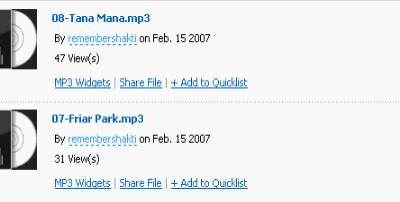
Recently I was searching a Ravi Shankar file at eSnips and I got as far as finding the file with all the details of it (file size, no. of views and all) intact :


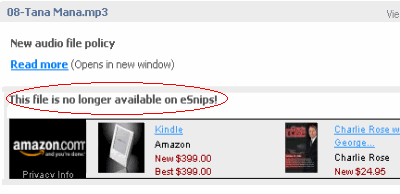
But on attempting to play the file I got this :

This file is no longer available on eSnips!


Well, my abnormally inquisitive mind told me that the file was there at eSnips allright, as even the file size was showing, so I just modified the 'doc' to 'nsdoc' in the address bar and pressed 'Enter'. Lo and behold my file was ready for download.


I am sure something is bugging eSnips which I fail to understand (maybe copyright authorities have tightened their noose around it). But why employ such methods to block files, which are so easy to exploit.

Meanwhile happy downloading !!

Thursday, December 06, 2007

eSnips : Download problem solved

Since yesterday I have been flooded with queries about the missing 'download' button and an easy way to dupe eSnips into letting all users to download mp3 files freely. I posted a few tips & tricks to download music files, button or no button. After posting these tips I was still uncertain whether all users would go as far as searching the Cache of Internet Explorer or even downloading Flashget and follow the instructions given in the post.

As most of us are not techies or for that matter even computer savvy, I pursued in my quest to find an easier way out and make things easier for fellow eSnippers. At last I discovered a big security lapse at the eSnips server.

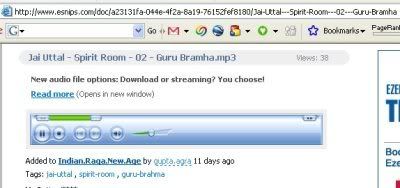
Now as you open an user's music folder you need to click on the music file you want to play. I presume that most of you want that file to play in a new window but many of you just click the link and the player opens up in the same window. In both the cases the window will look like the image given below :


As you can see the URL in the Internet Explorer or Firefox address bar looks like this :

http://www.esnips.com/doc/a23131fa-044e-4f2a-8a19-76152fef8180/Jai-Uttal---Spirit-Room---02---Guru-Bramha

Now click your mouse in the address bar itself and change doc (after http://www.esnips.com/) to nsdoc and remove the name of the file (including the slash), in this case : /Jai-Uttal---Spirit-Room---02---Guru-Bramha. Your modified URL in the address bar will now look like this (you may check out this trick by clicking on the following URL ):

http://www.esnips.com/nsdoc/a23131fa-044e-4f2a-8a19-76152fef8180

Now just press Enter. Lo and behold your file is ready for download. No need for downloading Flashget or searching fervently for your needed file in the ever bloated Internet Explorer Cache.

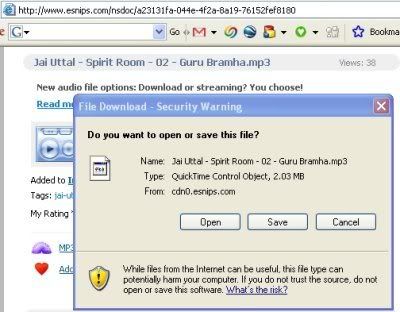
You will see this window after you press Enter :


This window will inadvertently remind you of the good-old-days of the green download button and may drive you to nostalgia. Just click on Save and watch your mp3 being downloaded as before.

Good old downloading days are here again .... till eSnips catches up with this too.

Listen to this same song while you watch your file being downloaded :


P.S : For those who are still experiencing problem in downloading (mainly those who are complaining about their files opening in an embedded player), I have hurriedly made a 'eSnips Downloader' that does all the work for you. See link in the side bar.

Enjoy !!
Wednesday, December 05, 2007

eSnips removes Download button : Tips & Tricks


From Dec 1, 2007, eSnips, which was fast gaining popularity among music communities because it offered huge 5 GB of storage space for free and allowed users to download mp3 files from each other, has now removed it's now famous green 'Download' button. As of now, one can only listen to a streaming mp3 but would not be able to download it.

But there's still hope unless someone from eSnips catches with it. Although eSnips has given an option to all those who upload mp3 files, if or not they want to share their music with other eSnippers, through the 'edit details' settings, but this was not working till yesterday, atleast not with files which were uploaded before 1st Dec 2007.

For those of you who download a few files and are not into bulk downloads its not a big problem. Play the file you want till the end. Open your windows explorer > documents and settings > user folder (computer user's name) > local settings > temporary internet files. You will find your wanted file in the Internet Explorer cache, though with a different name something like this :

?id=1196684437204 : you can detect the file by its icon (winamp or any other mp3 program icon) and filesize. Copy the file to the folder of your choice and rename it to it's original name. A piece of advice before you venture out to follow this tip: Delete all the Temporary Internet Files of Internet Explorer completely. You may do this by clicking on Tools option of the Internet Explorer > Internet Options > Temporary Internet Files > Delete Files. After clearing the files it would be lot easier for you to find that saved file otherwise finding a particular file from the Cache could be as hectic as finding a pin in a haystack.

The other trick particularly for those of you who download music files more often from eSnips, is to first install Flashget (Download Manager). It's free and is one of the best piece of software in it's category and you will not be able to do without it once you use it. You can download the English version from here :

http://www.flashget.com/en/download.htm

A direct link to download Flashget ver 1.73 :

http://down6.flashget.com/fgf173.exe

After installing Flashget normally, start it and minimize it. It will be visible in your system tray though.

Now start playing the eSnips mp3 file which you want to download. Click on the player once. Right click > Properties. Copy the 'Location' of the file, which should be looking something like this :

http://www.esnips.com/nsdoc/3c7aface-d664-4ef8-a5d1-82feb9fe545c/?id=1196843373328

There must be a ...../?id=(numbers) part in the location of the file.

As you copy the Location by selecting it with the mouse and right clicking on it and then copying, Flashget will automatically copy that URL in its window and you just have to click on the OK button and start downloading this file. If the window does not open by itself, maximize Flashget, click Edit option on the menu, select Paste URL. A window will open and your copied url will be already there, you just have to click on the OK button.

It is not necessary to play the full eSnips file. You play it for a few seconds, copy the file Location (URL) and start playing another music file and repeating the same. This way you may copy the download URLs of multiple files and download them later at your convenience. However there is a glitch here. The eSnips server does not have 'resume' capability for file downloads. So you have to download each file in one go without interrupting i.e. without stopping or pausing. However if your internet connection breaks or you have paused the download by mistake, you'll have to start allover again.

I hope these small download tips will bring smiles on all those eSnippers who thought that the world has come to an end after eSnips removed the 'download' button. Keep smiling and download as much as you can .... till eSnips people catch up with this.

Enjoy !!